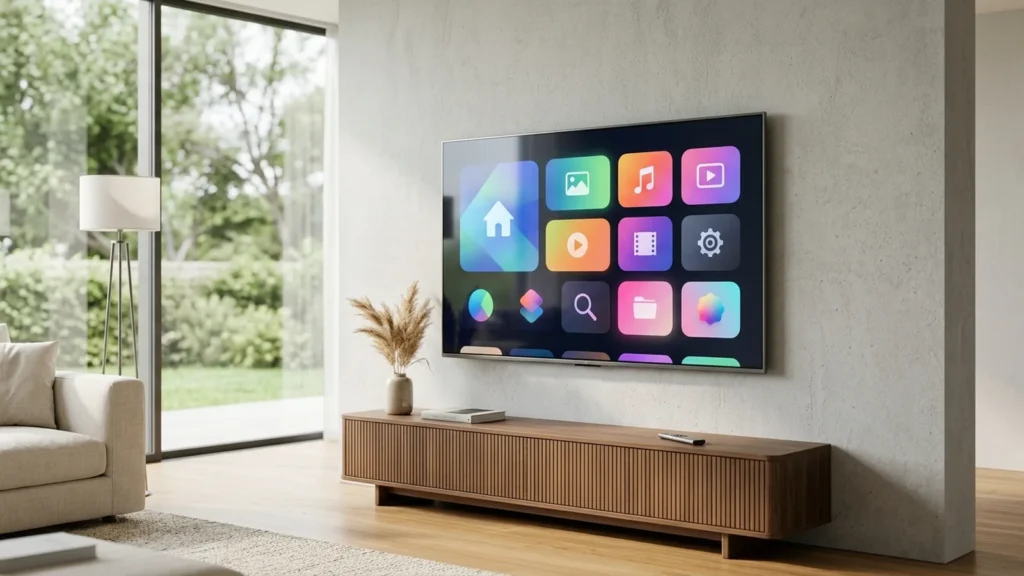
Quick Answer: To set up IPTV on a Samsung Smart TV, open the Samsung Smart Hub App Store, search for and install an approved media player such as IPTV Smarters Pro, IBO Player, or Smart IPTV, launch the app, and enter your subscription credentials using Xtream Codes API or your playlist M3U link. Samsung’s native Tizen OS decodes live 4K streams with zero external cables.
Samsung Smart TVs are renowned for their vibrant QLED panels, responsive Tizen operating systems, and streamlined user experiences. Because modern Samsung televisions do not use Android TV, installation requires specific player applications curated and certified for Samsung Tizen. This guide walks you through the exact process to install and configure your service directly on your television remote.
Table of Contents
Samsung TV Model & OS Compatibility
Samsung televisions manufactured between 2017 and 2026 operate on versions of Tizen OS (Tizen 3.0 through Tizen 8.0). Modern models (including Neo QLED, OLED, and Crystal UHD series) feature high-efficiency hardware HEVC/AV1 decoders that deliver silky-smooth 60fps sports playback without requiring external streaming dongles.
Prerequisites
- Samsung Smart TV: Connected to your home network via 5 GHz Wi-Fi or wired Ethernet. Check our comparison of Wi-Fi vs Ethernet for IPTV to maximize throughput.
- Samsung Account: A free Samsung account logged in on the TV to download applications from the Smart Hub store.
- Active Subscription Credentials: Your M3U playlist URL or Xtream Codes details. If you need a stable subscription, view our Orvixa IPTV plans designed for multi-device household entertainment.
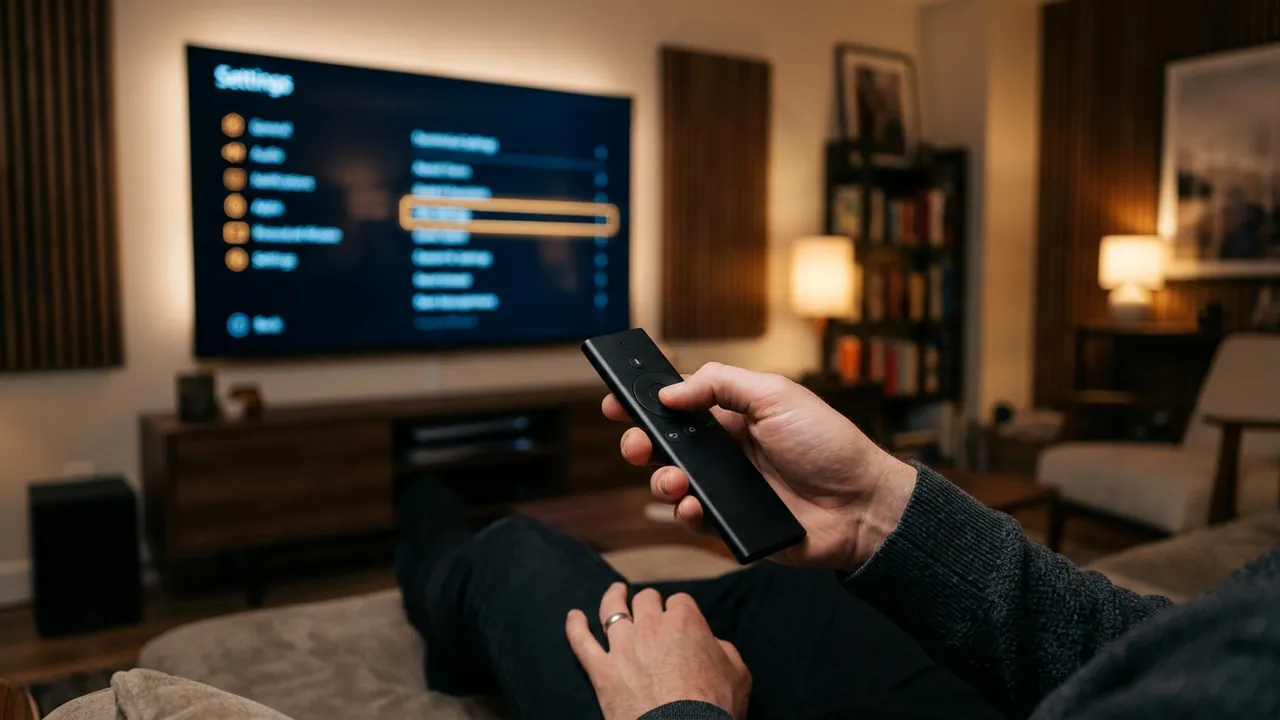
Use your Samsung SolarCell or Smart Remote to search for certified streaming players in the Smart Hub.
Step 1: Installing a Player from the Samsung App Store
On Samsung Smart TVs, you do not need to sideload unverified files. Official applications are available directly from the store:
- Press the Home button on your Samsung remote to open the Smart Hub menu.
- Navigate left to the Apps icon and press Enter.
- Click the Search magnifying glass in the upper right corner.
- Type IPTV Smarters or IBO Player.
- Select the application from the search results and click Install.
- Once the installation finishes, select Add to Home to pin the player to your quick-access launcher ribbon.
Step 2: Activating Your Subscription Credentials
Launch your newly installed player. Depending on whether you selected IPTV Smarters Pro or a MAC-based player like IBO Player:
Method A: Xtream Codes API (Recommended)
Select Login with Xtream Codes API and enter:
- Profile Name:
Orvixa IPTV - Username: Your assigned subscription username
- Password: Your assigned subscription password
- Server URL: Complete server portal address (including port number)
Method B: Device MAC / Portal Upload
For applications such as IBO Player or Smart IPTV, the screen will display a unique Device MAC Address and Device Key. Visit the player’s web portal on your phone or laptop, input the MAC address, and paste your Orvixa M3U playlist link. Reload the application on your TV to populate channels.
Step 3: Optimizing Tizen Picture & Buffer Settings
To get the cleanest sports picture without micro-stuttering on Samsung panels:
- Adjust Picture Clarity: In your TV settings, go to Picture → Expert Settings → Picture Clarity Settings. Set Judder Reduction to 3-4 and Blur Reduction to 8-10. This prevents soap-opera effect while keeping high-speed football and basketball puck/ball movement sharp.
- Set Player Format to HLS: Inside your IPTV app settings, select HLS (.m3u8) as your default stream stream container format. Tizen OS natively accelerates HLS chunk playback.
- Allocate Buffer Time: Set buffer size to Medium (3 to 5 seconds) to absorb temporary Wi-Fi jitter.
Troubleshooting Samsung IPTV Issues
- App Disappeared from Apps Store: Samsung occasionally rotates regional application listings. If a specific player is unavailable in your region, alternatives like Nanomid Player, Flix IPTV, or Smart IPTV provide equivalent playback engines.
- Buffering on Live Channels: Check your internet speed. Streaming 4K live sports requires consistent throughput. Review our guide on how to reduce IPTV buffering for router tuning and DNS adjustments.
- TV Memory Full: If the app closes unexpectedly, go to Settings → Support → Device Care → Manage Storage and delete cached data from unused apps.
Responsible Streaming Advisory
Ensure you access content through authorized subscriptions that comply with relevant copyright regulations. Always use strong, unique passwords for your account credentials.
Frequently Asked Questions
Do I need an external Firestick if I have a Samsung Smart TV?
No. If your Samsung TV was manufactured in 2018 or newer, the native Tizen apps provide exceptional standalone performance without occupying an HDMI port. However, some users prefer a Firestick for broader app store flexibility.
Can I record live TV on my Samsung Smart TV?
Most IPTV player apps on Tizen support live pause and catch-up TV for programs broadcast within the last 48-72 hours, depending on your subscription tier.
Upgrade Your Samsung TV Viewing Experience
Stream 28,000+ live HD and 4K channels directly through your Samsung Smart TV with Orvixa IPTV’s robust streaming network.
Test Orvixa IPTV With a Free 24-Hour Trial
Experience 28,000+ live US & international channels, 4K/Full HD sports, and VOD on your Smart TV, Firestick, or mobile device before you commit.