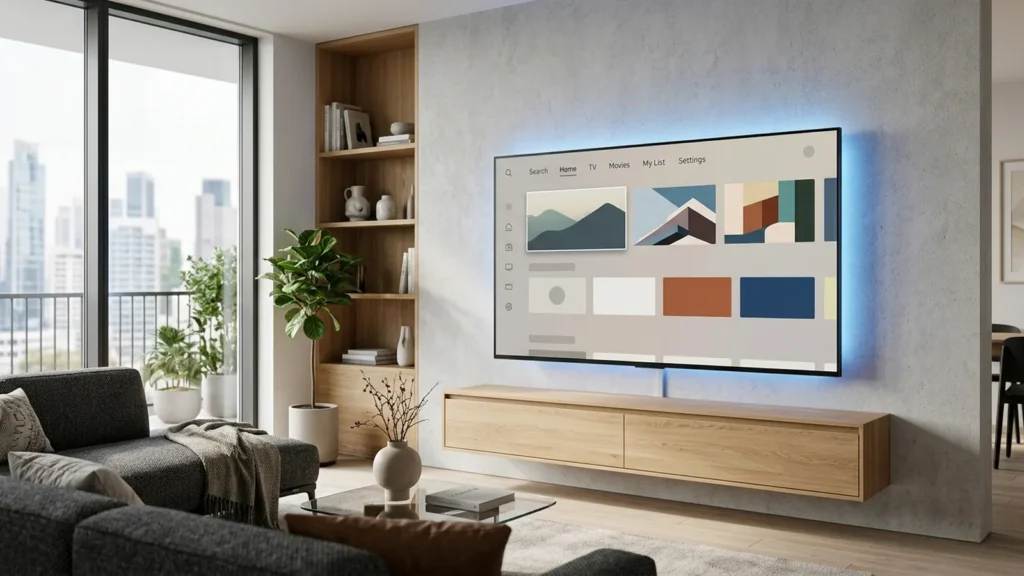
Quick Answer: To set up IPTV on an LG Smart TV, open the LG Content Store (or Apps menu on webOS 22/23/24), search for an authorized streaming player such as IPTV Smarters Pro, IBO Player, or Smart IPTV, install the app, and enter your subscription credentials using Xtream Codes API or an M3U link. LG webOS natively decodes 4K HDR streams without external hardware.
LG OLED and QNED televisions are celebrated for their class-leading contrast, wide viewing angles, and intuitive webOS operating system paired with the Magic Remote. Setting up IPTV on an LG Smart TV provides a clutter-free, cinema-grade experience directly through your television screen without occupying an HDMI port. This step-by-step guide covers everything you need to start streaming reliably.
Table of Contents
LG webOS Compatibility
This guide applies to LG Smart TVs running webOS 3.5 through webOS 24 (models from 2017 to 2026). Whether you own an LG C-Series OLED, G-Series Gallery display, or an entry-level 4K UHD model, the α7/α9/α11 AI processors provide hardware-accelerated HEVC and AV1 stream decoding with deep color reproduction.
Requirements Before Starting
- Stable Home Network: At least 25 Mbps download speed for HD or 50+ Mbps for 4K live events. Consult our IPTV internet speed guidelines to confirm your network capability.
- LG Account: Logged in under Settings → Account Management to authorize app downloads from the LG Content Store.
- Active Subscription Credentials: An M3U URL or Xtream Codes login. Discover our high-performance Orvixa IPTV subscription packages engineered for smooth multi-screen streaming.
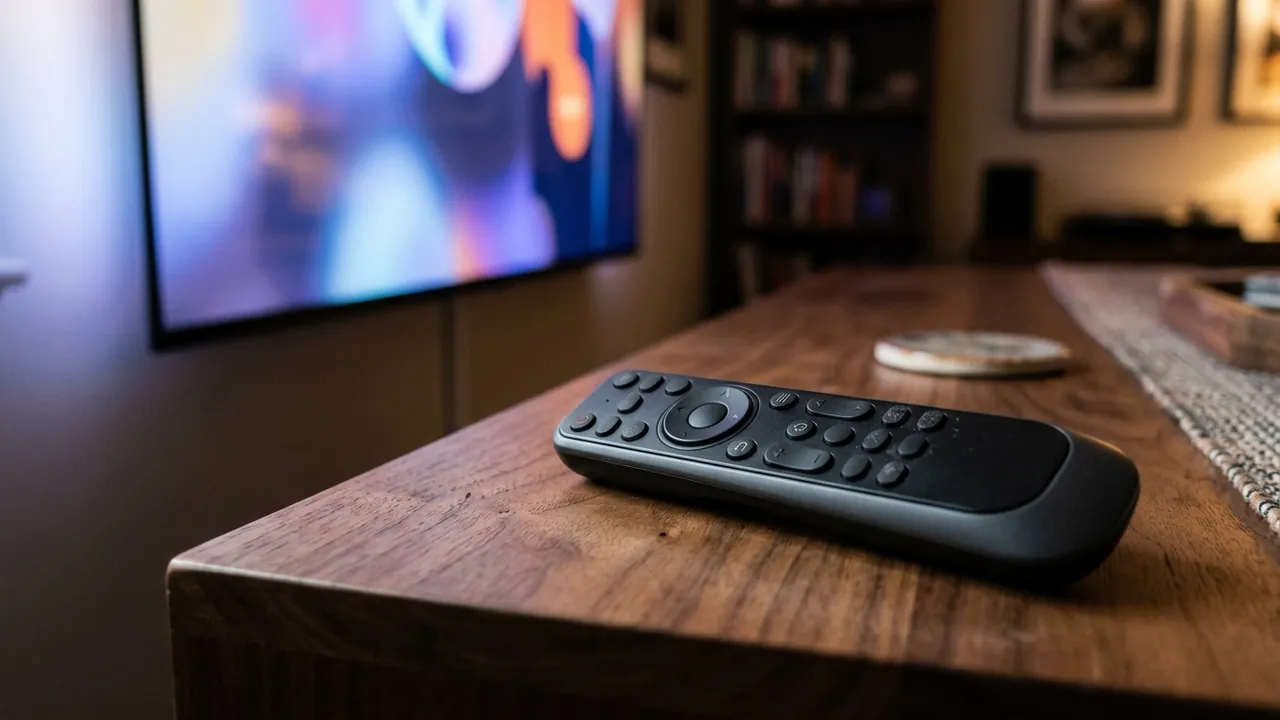
The LG Magic Remote’s point-and-click functionality makes typing portal addresses and channel searching exceptionally fast.
Step 1: Installing a Player from LG Content Store
- Press the Home button on your LG Magic Remote to bring up the webOS launcher bar.
- Click on the Apps card or LG Content Store.
- Select the Search magnifying glass icon at the top of the interface.
- Type IPTV Smarters or IBO Player using the on-screen keyboard.
- Select the app from the results and press Install.
- Wait for the download to complete, then click Launch.
Step 2: Connecting Your Playlist & Credentials
Once inside the application, connect your subscription using one of two standard industry methods:
Method 1: Xtream Codes API (Direct App Login)
Select Login with Xtream Codes API in IPTV Smarters or similar apps:
- Any Name:
Orvixa IPTV - Username: Your subscription username
- Password: Your subscription password
- Server URL: Complete server address including port number (e.g.,
http://portal-url:port)
Click Add User. The app will automatically sync your channel categories, VOD movies, and EPG schedule.
Method 2: MAC Address Portal Upload (IBO / Smart IPTV)
If you prefer IBO Player or Smart IPTV, note the MAC Address and Device Key displayed on your TV screen. Open your browser on a phone or laptop, visit the player’s activation portal, and paste your Orvixa M3U URL. Reload the app on your LG TV to access your channels.
Step 3: Fine-Tuning webOS for Live Sports & 4K
- TruMotion Settings for Sports: Go to Settings → Picture → Advanced Settings → Clarity → TruMotion. Select Smooth Movement or set De-Judder to 2 and De-Blur to 10. This eliminates judder on 50/60fps football, hockey, and basketball streams.
- Switch Network Band: Ensure your TV connects to your router’s 5 GHz band rather than 2.4 GHz. Read our detailed guide on 2.4 GHz vs 5 GHz Wi-Fi for IPTV to optimize wireless throughput.
- Player Stream Format: In your player’s internal settings, set stream format to MPEG-TS or HLS based on which loads channels faster on your home connection.
Common LG webOS Troubleshooting
- App Freezes on Channel Change: If the player freezes, press and hold the Back button on your Magic Remote to force exit. Then, go to Settings → General → Quick Start+ and disable it. Turning off Quick Start+ forces webOS to perform a clean RAM reboot every time you power on the TV.
- Persistent Buffering: Frequent pauses during live events indicate network packet loss or ISP congestion. Review our 8 actionable fixes on how to reduce IPTV buffering.
- App Not Launching: If your player fails to open, follow our troubleshooting walkthrough for IPTV app not loading to reinstall and refresh permissions.
Compliance & Lawful Streaming Note
We advocate responsible streaming practices. Subscribers are advised to access authorized broadcasts and comply with all applicable telecommunications and copyright laws in their respective territories.
Frequently Asked Questions
Can I use a wired Ethernet cable with my LG TV?
Yes. Most LG Smart TVs have a 100 Mbps Ethernet port on the back. While 100 Mbps is lower than theoretical Wi-Fi 6 speeds, a wired connection provides zero latency and zero wireless interference, which is ideal for steady 4K streaming.
What should I do if the LG Content Store doesn’t show IPTV Smarters?
If IPTV Smarters Pro is temporarily unavailable in your region’s LG Content Store, install IBO Player, Nanomid, or Flix IPTV. All of these certified webOS players support Xtream Codes and M3U playlists.
Experience Stunning 4K Streaming on LG webOS
Enjoy 28,000+ live television channels and thousands of on-demand movies optimized for LG OLED and QNED displays.
Test Orvixa IPTV With a Free 24-Hour Trial
Experience 28,000+ live US & international channels, 4K/Full HD sports, and VOD on your Smart TV, Firestick, or mobile device before you commit.