Quick Answer: When your IPTV app is not loading, freezes on launch, or repeatedly crashes, clear the application cache from your device’s application settings menu, power-cycle your streaming hardware by unplugging it for 60 seconds, and verify that your device clock is synchronized. If the app continues crashing, a corrupted EPG database or outdated app version is usually responsible.
Whether you use TiviMate, IPTV Smarters Pro, or native smart TV applications, launch crashes and endless loading spinners can interrupt your viewing plans. Because IPTV players manage large relational databases containing tens of thousands of channel entries, program guide timelines, and high-resolution thumbnail images, memory exhaustion and database corruption can trigger sudden app closures. Fortunately, systematic troubleshooting resolves nearly all application failures quickly.
Table of Contents
- Why IPTV Applications Crash or Hang
- Step 1: Perform a Clean Hardware Power Cycle
- Step 2: Clear Application Cache (Without Losing Data)
- Step 3: Synchronize System Date and Time
- Step 4: Purge Corrupt EPG Database Files
- Step 5: Perform a Clean Application Reinstallation
- Platform-Specific Troubleshooting Tips
- Responsible Streaming Policy
- Frequently Asked Questions
Why IPTV Applications Crash or Hang
Understanding what triggers the failure allows you to apply the correct fix immediately:
- RAM Exhaustion: Compact streaming sticks with only 1 GB or 1.5 GB of RAM easily choke when parsing gigantic playlists with over 50,000 live channels and VOD titles.
- Corrupt EPG XML Cache: If an electronic program guide download was interrupted halfway through, corrupted XML data will cause the app’s parser to crash every time it tries to build the TV guide grid. Read our guide on how to fix an IPTV EPG not updating.
- System Time Drift: Secure API tokens require timestamps. If your smart TV clock drifts by even three minutes from real UTC time, the handshake fails with an endless spinner.
- Outdated APK / Architecture Incompatibility: Running a 32-bit legacy build on modern 64-bit Android or tvOS platforms leads to unhandled exceptions.
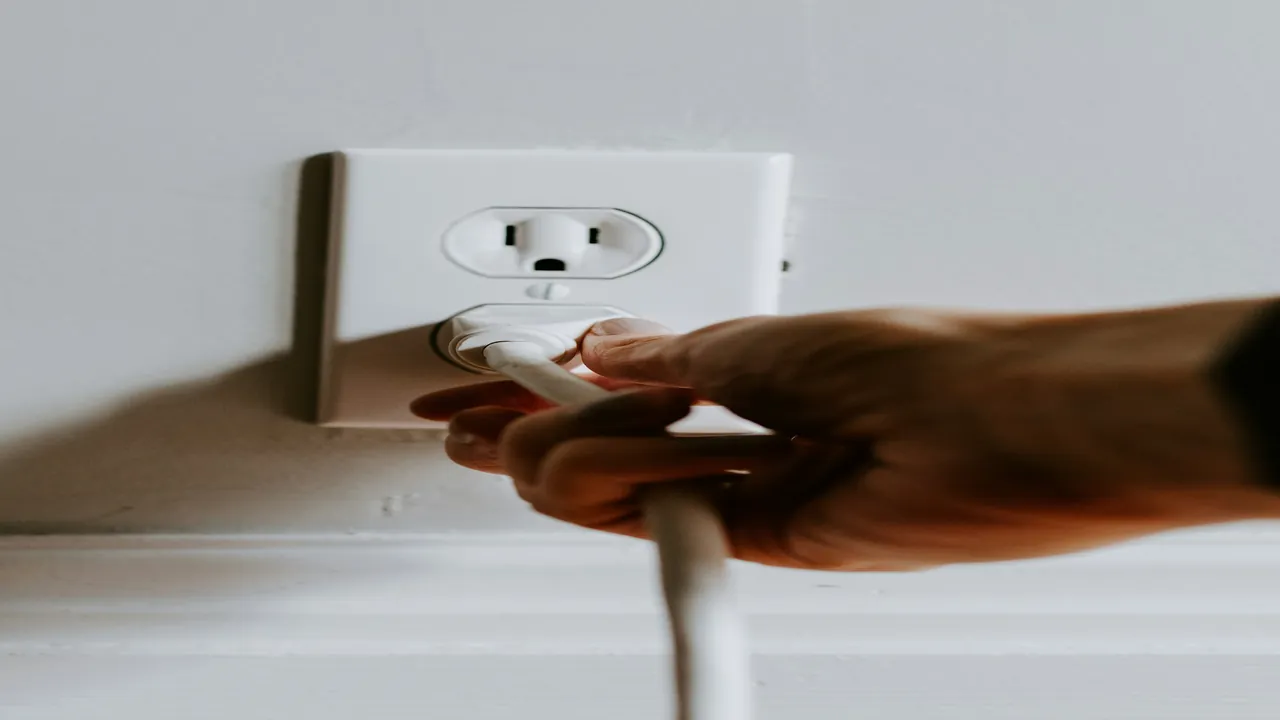
Completely disconnecting power for 60 seconds flushes volatile RAM and terminates hung background processes.
Step 1: Perform a Clean Hardware Power Cycle
Putting a TV or streaming stick to sleep with the remote does not reboot the operating system. Residual memory leaks persist in background processes:
- Unplug the power cable from the wall outlet or back of the streaming device.
- Wait a full 60 seconds to allow all capacitors on the motherboard to discharge completely.
- Reconnect power and allow the device to boot fully into the home screen before relaunching your player.
Step 2: Clear Application Cache (Without Losing Data)
Do not confuse Clear Cache with Clear Data. Clearing cache safely removes temporary images and fragmented stream segments while leaving your username, password, and favorites completely intact:
- Amazon Fire TV / Firestick: Go to Settings → Applications → Manage Installed Applications → [Your App] → Clear Cache.
- Android TV / Google TV: Go to Settings → Apps → See all apps → [Your App] → Clear Cache.
- Apple TV: tvOS manages cache automatically, but force-quitting the app (double-press TV button on remote and swipe up) purges active memory.
Step 3: Synchronize System Date and Time
Xtream Codes API connections rely on synchronized time handshakes. If your TV’s clock is inaccurate after a power outage:
- Navigate to your operating system’s Date and Time settings.
- Toggle Automatic Date and Time (Network Provided Time) off, wait 5 seconds, and toggle it back on.
- Verify that the displayed time matches your actual local time zone.
Step 4: Purge Corrupt EPG Database Files
If your app crashes right after displaying “Updating TV Guide” or “Parsing EPG”:
- Open the app’s internal settings menu.
- Navigate to EPG / TV Guide options.
- Select Clear EPG Data or Update EPG.
- In high-end players like TiviMate, reduce guide retention from 7 days down to 1–2 days to minimize memory overhead.
Step 5: Perform a Clean Application Reinstallation
If binary files or system permissions have degraded:
- Take a photo of your server URL and login credentials for reference.
- Uninstall the application completely from your device settings.
- Restart your device.
- Reinstall the latest official release from the Google Play Store, Amazon Appstore, or Apple App Store.
- Re-enter your Xtream Codes API credentials and reconnect. If you encounter specific server response codes, consult our reference on common IPTV error messages and diagnoses.
Platform-Specific Troubleshooting Tips
Review our dedicated device guides for targeted operating system settings:
- For Firestick users: How to Set Up IPTV on Amazon Firestick
- For Samsung Smart TV owners: How to Set Up IPTV on Samsung Smart TV
- For LG webOS displays: How to Set Up IPTV on LG Smart TV
- For Android & Google TV: How to Set Up IPTV on Android TV
- For buffering and playback issues: How to Reduce IPTV Buffering
Responsible Streaming Policy
Orvixa IPTV supplies robust digital delivery networks. Subscribers are responsible for confirming that all multimedia content viewed through their third-party software complies with regional copyright statutes and appropriate licensing frameworks.
Frequently Asked Questions
Will clearing app data delete my playlist and favorites?
Yes. Clicking “Clear Data” resets the app to factory settings, erasing your login credentials and customized channel favorites. Always choose “Clear Cache” first, which safely removes temporary files without touching your settings.
Why does the app close every time I open a specific channel?
This happens when a channel broadcast uses an audio or video codec (such as AC4 or HEVC 10-bit) that your player’s default hardware decoder cannot parse. Switch your player settings from “Hardware Decoder” to “Software (VLC/ExoPlayer)” to bypass the crash.
Reliable Streaming That Never Quits
Infrastructure engineered for stable stream delivery, responsive channel zapping, and round-the-clock technical support.
Test Orvixa IPTV With a Free 24-Hour Trial
Experience 28,000+ live US & international channels, 4K/Full HD sports, and VOD on your Smart TV, Firestick, or mobile device before you commit.