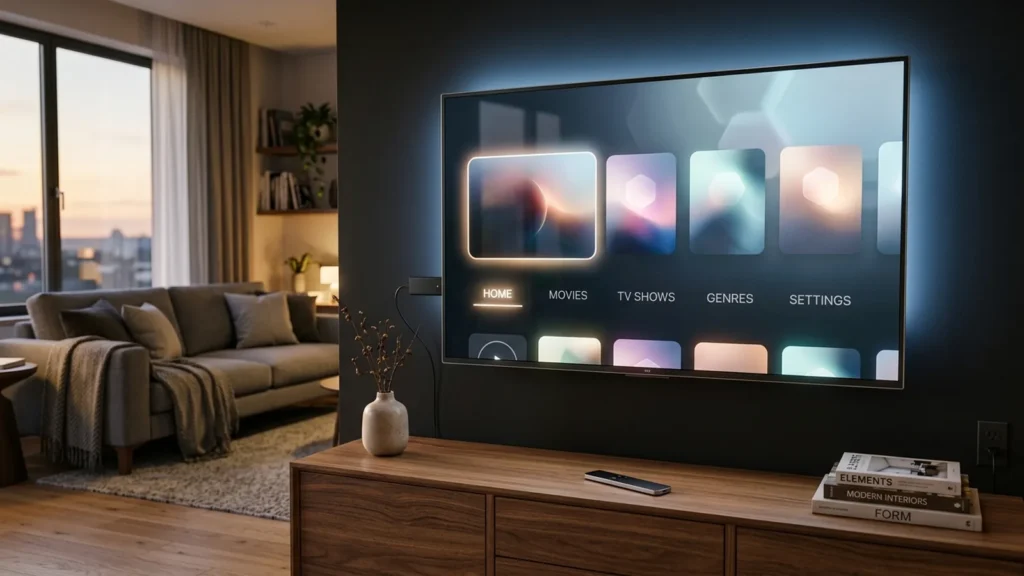
Quick Answer: To set up IPTV on an Amazon Fire TV Stick, connect your streaming stick to an available HDMI port, download a certified media player application from the Amazon Appstore or via a verified downloader utility, and enter your subscription credentials using either an Xtream Codes API (server URL, username, password) or an M3U playlist URL. The entire process takes under ten minutes and requires no technical expertise.
The Amazon Fire TV Stick is the most popular streaming hardware in North America due to its high-performance hardware decoding, reliable Wi-Fi antenna arrays, and portable form factor. Whether you are running a Fire TV Stick 4K Max, Fire TV Stick Lite, or Fire TV Cube, this comprehensive walkthrough provides verified, step-by-step instructions to configure your live channels and on-demand library cleanly and securely.
Table of Contents
Who This Guide Is For
This tutorial is tailored for subscribers who want to stream live sports broadcasts, international television, and video-on-demand content on their living-room television using an Amazon streaming device. No developer skills, specialized networking knowledge, or rooting is required. All steps use standard remote control navigation.
Prerequisites & System Requirements
Before beginning the installation, ensure you have the following items ready:
- Amazon Fire TV Device: Fire TV Stick (3rd Gen or newer), Fire TV Stick 4K, 4K Max, or Fire TV Cube running Fire OS 7 or later.
- High-Speed Internet: A stable broadband connection of at least 25 Mbps for HD streaming or 50 Mbps for 4K live sports. Review our recommended internet speed guide for IPTV for bandwidth calculations.
- Active Subscription Credentials: Your M3U playlist link or Xtream Codes login details provided upon subscription activation. If you need a premium account, explore Orvixa IPTV subscription plans with instant automated provisioning.
- Free Storage Space: At least 400 MB of available storage on your Fire TV Stick to allow video buffering and guide caching.
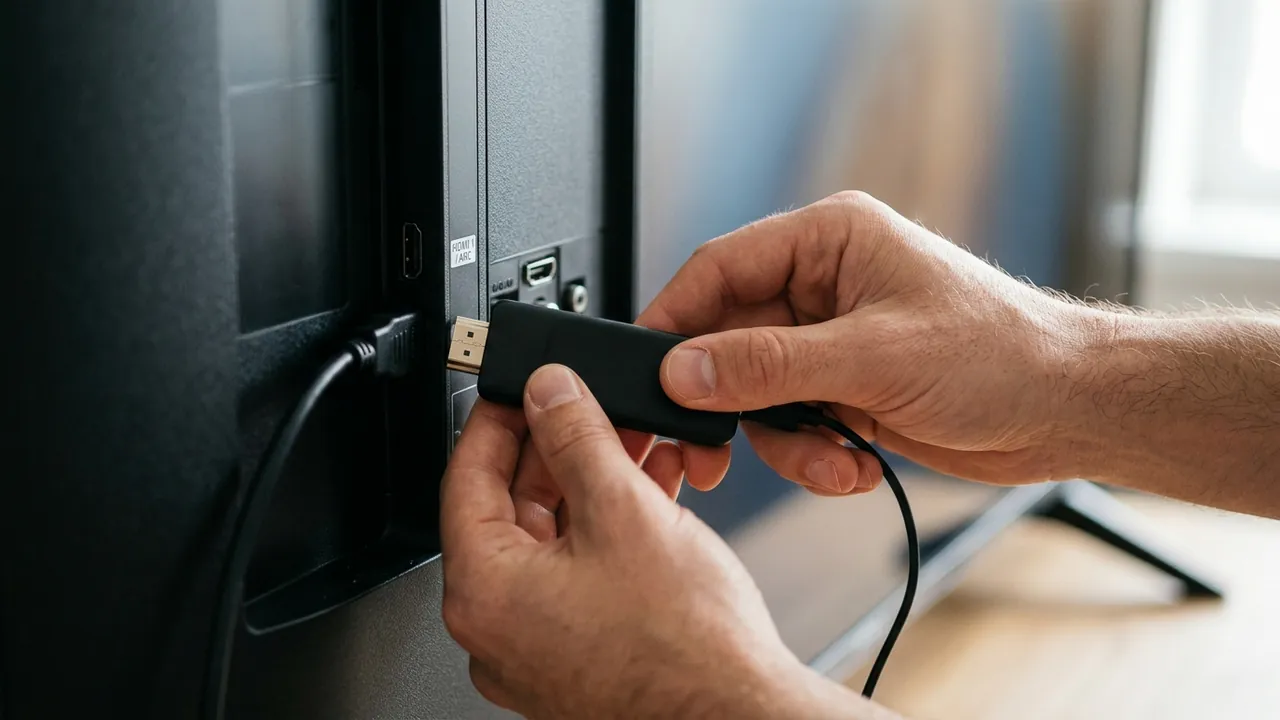
Ensure the HDMI stick is firmly seated and powered via the included wall adapter rather than low-voltage TV USB ports.
Step 1: Physical Connection & Network Check
Proper physical setup prevents 90% of playback and thermal throttling issues on compact HDMI sticks:
- Use the Included HDMI Extender: The short flexible HDMI cable provided by Amazon keeps the Firestick slightly separated from the television back panel, preventing heat transfer and significantly improving Wi-Fi reception.
- Connect Directly to Wall Power: Avoid powering your Fire TV Stick using your TV’s built-in USB service ports. Television USB ports rarely output sufficient amperage (1.0A to 1.5A), resulting in unexpected reboots during high-bitrate 4K streams.
- Select the 5 GHz Wi-Fi Band: Go to Settings → Network on your Firestick. Connect to your 5 GHz Wi-Fi network rather than the congested 2.4 GHz band to eliminate interference from household appliances.
Step 2: Installing a Compatible Media Player
To decode IPTV streams and display your Electronic Program Guide (EPG), you need a dedicated media player application. Several trusted options are available:
| Player Application | Supported Formats | Key Strengths |
|---|---|---|
| IPTV Smarters Pro | Xtream Codes API, M3U | Multi-screen view, catch-up TV, built-in player engine |
| TiviMate IPTV Player | M3U, Xtream Codes, Stalker | Modern cable-style TV guide, ultra-fast channel zapping |
| XCIPTV Player | Xtream Codes, M3U | Clean user interface, built-in backup and restore options |
To install your preferred player on Fire OS:
- Navigate to the Find menu on the Firestick home screen and select Search.
- Type your chosen media player name (such as IPTV Smarters) and click the search result.
- Select Get or Download to install the application directly from the official store.
- Once installed, launch the application from the Your Apps & Games ribbon.
Step 3: Configuring Your IPTV Subscription
When launching the application for the first time, you will be prompted to select your playlist login method. We strongly recommend choosing Xtream Codes API whenever possible, as it synchronizes the channel list, VOD catalog, and EPG automatically without requiring manual URL refreshes.
Xtream Codes Configuration Fields:
- Any Name: Enter a recognizable label, such as
Orvixa IPTV. - Username: Enter your subscription username exactly as provided (case-sensitive).
- Password: Enter your subscription password.
- Server URL / Portal URL: Enter the complete server URL (e.g.,
http://domain:port).
Click Add User or Login. The application will authenticate your account and download your playlist channels. Once loading completes, your categories (Live TV, Movies, Series) will appear on the dashboard.
Common Firestick Streaming Fixes
If you encounter performance issues or playback interruptions on your Firestick, apply these proven adjustments:
- Clear Application Cache: Navigate to Settings → Applications → Manage Installed Applications. Select your IPTV player, click Clear Cache, and force stop the app. This frees up RAM without deleting your login credentials.
- Switch Hardware Decoding: Inside your player settings, locate the Playback / Player Engine option. Switch from Software Decoder to Hardware Decoder. The Firestick’s dedicated GPU handles H.264/H.265 streams with significantly lower latency.
- Eliminate Buffering: Frequent buffering is commonly caused by Wi-Fi packet drops or ISP congestion during peak evening sports broadcasts. Follow our comprehensive guide on how to reduce IPTV buffering to configure local buffer sizes and DNS routing.
- Fix Guide Synchronization: If your program guide is empty, follow our troubleshooting steps to fix an IPTV EPG that is not updating.
Responsible & Lawful Streaming Note
Orvixa IPTV provides access to digital streaming infrastructure. We advise all users to stream licensed content and ensure compliance with their local copyright and communications regulations. We do not encourage unauthorized access, security circumvention, or the download of unverified third-party APKs.
Frequently Asked Questions
Can I use one subscription on multiple Firesticks?
Yes, you can install the application on multiple Firesticks across your household. However, the number of simultaneous active streams depends on your purchased plan. Check our guide on how many devices can use an IPTV subscription for connection tier limits.
Do I need an Ethernet adapter for my Firestick?
An Ethernet adapter is optional but highly recommended if your Firestick is located far from your router. A wired connection eliminates wireless latency and provides steady throughput for uncompressed 4K sports.
What should I do if my audio is out of sync?
Go to your Firestick Settings → Display & Sounds → Audio → Surround Sound and select PCM or Stereo instead of Dolby Digital Plus if your television or soundbar experiences audio delay.
Ready to Stream on Your Firestick?
Get instant access to over 28,000 live channels, sports passes, and international entertainment with Orvixa IPTV’s high-availability streaming clusters.
Test Orvixa IPTV With a Free 24-Hour Trial
Experience 28,000+ live US & international channels, 4K/Full HD sports, and VOD on your Smart TV, Firestick, or mobile device before you commit.