
Quick Answer: To set up IPTV on a Windows 10 or 11 PC, download a dedicated player like IPTV Smarters Pro for Windows or VLC Media Player. In IPTV Smarters, select Login with Xtream Codes API, enter your server URL, username, and password, and click connect. Windows PCs offer substantial flexibility with multi-monitor viewing, hardware GPU acceleration, and wired Gigabit throughput.
A Windows desktop or laptop is one of the most powerful platforms for streaming live television and sports. With high-performance graphics cards, multi-monitor productivity setups, and customizable audio drivers, Windows provides features that streaming sticks simply cannot match—including watching multiple games side-by-side and routing audio through studio monitors or gaming headsets.
Table of Contents
- Advantages of Streaming IPTV on Windows
- Prerequisites & System Requirements
- Top Windows IPTV Player Applications
- Method 1: Setup via IPTV Smarters Pro (Recommended)
- Method 2: Setup via VLC Media Player
- Configuring GPU Hardware Acceleration & HEVC Codecs
- Network Optimization for PC Streaming
- Troubleshooting Windows Playback Issues
- Responsible Streaming Policy
- Frequently Asked Questions
Advantages of Streaming IPTV on Windows
Windows PCs bring workstation-level computing power to your home entertainment:
- Multi-Monitor Productivity: Dedicate a secondary monitor to a live news broadcast or football match while continuing your work or gaming on your primary display.
- Dedicated GPU Decoding: Modern NVIDIA RTX, AMD Radeon, and Intel Iris/Arc graphics effortlessly decode 4K 60fps HEVC streams with minimal CPU utilization.
- Flexible Audio Routing: Route stadium game sound to high-end desktop DACs, USB headphones, or multi-channel surround sound configurations.
Prerequisites & System Requirements
- A PC running Windows 10 (64-bit) or Windows 11 with up-to-date graphics drivers.
- An active broadband connection. Review our guidelines on recommended internet speed for IPTV.
- Your Orvixa IPTV subscription credentials (server URL, username, password). New subscribers can view options via our IPTV subscription plans.
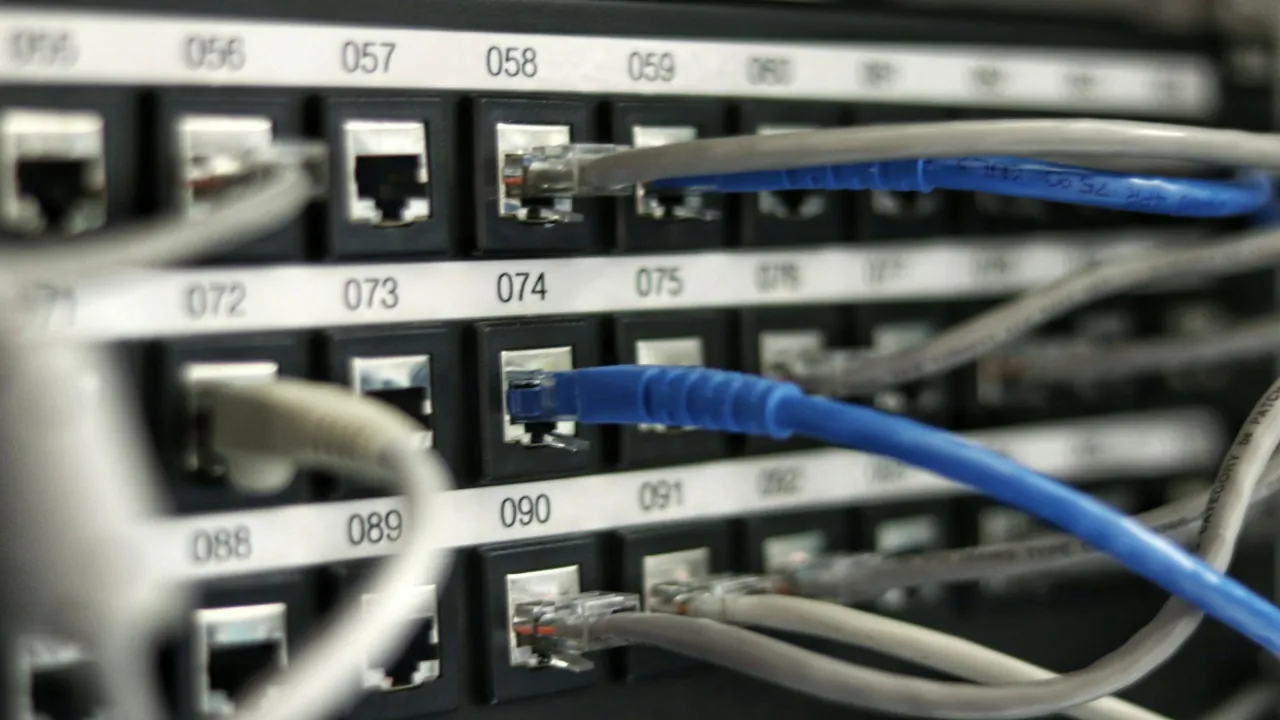
Connecting your desktop PC via Cat6 Ethernet eliminates wireless packet jitter and latency spikes.
Top Windows IPTV Player Applications
Select the player that aligns with your interface preferences:
- IPTV Smarters Pro for Windows: Clean dashboard interface featuring full EPG grids, channel search, VOD categorization, and multi-screen split view.
- VLC Media Player: The open-source standard for media playback, lightweight and capable of opening raw M3U URLs directly.
- MyIPTV Player: Available natively in the Microsoft Store with built-in EPG support and Windows notification integration.
Method 1: Setup via IPTV Smarters Pro (Recommended)
IPTV Smarters delivers the most comprehensive TV experience on desktop computers:
- Download the official Windows installer (
.exe) for IPTV Smarters Pro. - Run the installer and complete the setup wizard.
- Open the application and select Login with Xtream Codes API.
- Enter your connection credentials:
- Any Name: Orvixa PC
- Username: Your subscription username
- Password: Your subscription password
- Server URL: The server address provided in your confirmation email
- Click Add User. The software will synchronize your channel categories, movie libraries, and guide data.
Method 2: Setup via VLC Media Player
If you prefer a lightweight player without extra software installation:
- Open VLC Media Player.
- Click Media in the top menu bar, then select Open Network Stream (or press
Ctrl + N). - Paste your complete M3U playlist URL into the network URL field.
- Click Play.
- Press
Ctrl + Lto open the Playlist window and browse through your available channel list.
Configuring GPU Hardware Acceleration & HEVC Codecs
To prevent high CPU usage and choppy playback on high-bitrate 4K streams:
- Install HEVC Video Extensions: Windows 10 and 11 do not ship with the H.265 codec by default. Search for HEVC Video Extensions in the Microsoft Store or install K-Lite Mega Codec Pack.
- Enable Hardware Acceleration in VLC: Go to Tools → Preferences → Input / Codecs. Under Hardware-accelerated decoding, change the dropdown from Automatic to DirectX Video Acceleration (DXVA) 2.0.
Network Optimization for PC Streaming
Desktop workstations benefit greatly from network tuning:
- Wired Connection: Always prefer an RJ45 Ethernet connection over Wi-Fi when possible. Learn more in our breakdown of Wi-Fi vs Ethernet for IPTV.
- Disable Heavy Background Bandwidth: Pause large Steam game downloads, cloud backups, or torrent clients while streaming live 4K broadcasts to avoid frame drops. Read our troubleshooting guide on how to reduce IPTV buffering.
Troubleshooting Windows Playback Issues
- Black Screen with Audio Playing: Indicates an unsupported video renderer. In your player preferences, switch video output from Direct3D11 to OpenGL or Direct3D9.
- Antivirus or Windows Defender Blocks Connection: Some strict corporate firewalls or aggressive third-party suites flag IPTV ports. Add an exception for your media player executable in Windows Defender Firewall.
- Stream Desyncs Over Time: Restart your player and ensure your PC system clock is synchronized via Windows Settings → Time & Language → Sync Now.
Responsible Streaming Policy
Orvixa IPTV supplies digital streaming delivery networks. Subscribers are responsible for confirming that their broadcast consumption complies with local copyright laws and governing media broadcast authorizations.
Frequently Asked Questions
Can I watch multiple live channels at the same time on PC?
Yes. IPTV Smarters for Windows features a Multi-Screen mode that allows splitting your display into 2, 3, or 4 simultaneous live channel feeds. Note that each active stream counts toward your simultaneous connection allotment.
Does VLC support the electronic program guide (EPG)?
VLC primarily displays raw channel names in its playlist view. For a full electronic program guide grid with show descriptions and schedules, a dedicated app like IPTV Smarters is recommended.
Power Up Your Desktop Entertainment
Stream high-frame-rate sports and movies with dedicated Windows players and crystal-clear server connections.
Test Orvixa IPTV With a Free 24-Hour Trial
Experience 28,000+ live US & international channels, 4K/Full HD sports, and VOD on your Smart TV, Firestick, or mobile device before you commit.