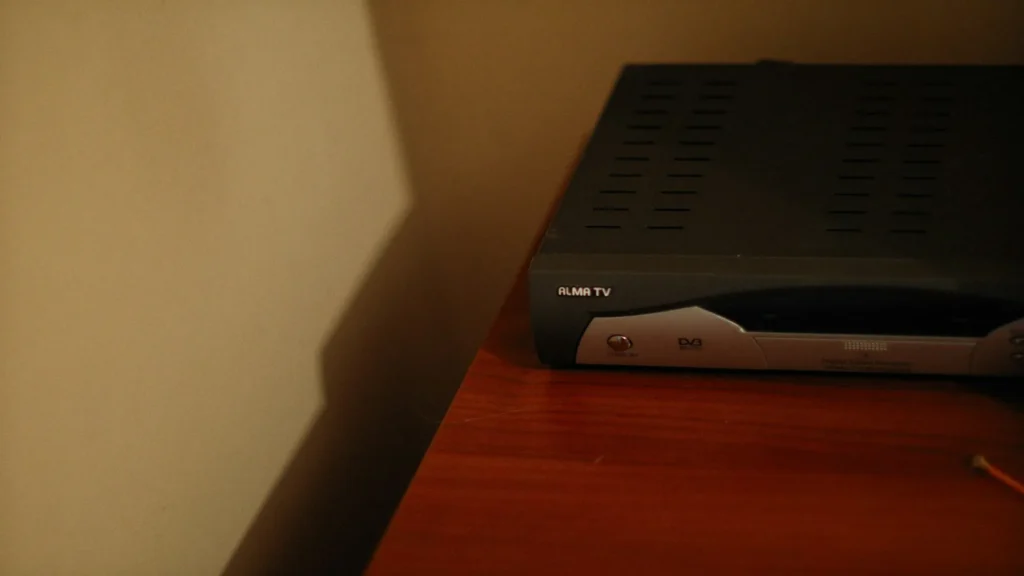
Quick Answer: To set up IPTV on a MAG set-top box, register your device’s MAC address (starting with 00:1A:79) with your IPTV provider, then navigate to Settings → Servers → Portals and enter your provider’s Portal URL. For Formuler devices, open MyTVOnline (MOL2 / MOL3), select Add Portal, enter your portal URL, and connect. Dedicated set-top boxes deliver authentic hardware channel switching and zero-latency guide navigation.
Dedicated IPTV set-top boxes—specifically Infomir’s MAG series and Formuler’s Android-powered streaming boxes—represent the gold standard for dedicated television viewing. Engineered purely for broadcast stream decoding, these devices feature custom remote controls with numeric keypads, dedicated EPG buttons, and hardware decoders that switch channels in less than a second.
Table of Contents
- MAG vs Formuler: Hardware Architecture Comparison
- Prerequisites Before Configuration
- Step-by-Step Setup for Infomir MAG Boxes
- Step-by-Step Setup for Formuler MyTVOnline
- Optimal Cable & Network Configuration
- Buffer Optimization & Portal Error Diagnostics
- Responsible Streaming Policy
- Frequently Asked Questions
MAG vs Formuler: Hardware Architecture Comparison
While both brand families target television purists, their underlying operating systems differ significantly:
- Infomir MAG Boxes (MAG 322, 421, 524, 540): Built on a lightweight Linux kernel. They run embedded middleware (Ministra/Stalker) with no third-party apps, delivering extreme operational stability and instant boot times.
- Formuler Set-Top Boxes (Z8, Z10 Pro, Z11 Pro Max): Run a customized version of Android TV combined with Formuler’s proprietary MyTVOnline3 (MOL3) software suite. They support both Stalker portal MAC authentication and Xtream Codes API playlists, alongside Google Play Store app installation.
Prerequisites Before Configuration
- Your set-top box connected to your television via HDMI and powered on.
- Your device’s unique MAC address (located on the underside label or under System Settings → Device Info).
- An active Orvixa IPTV subscription activated for MAC Portal streaming. Review our available options on our IPTV subscription plans page.
- A reliable internet connection (wired Ethernet strongly recommended). Check our technical recommendations on recommended internet speed for IPTV.
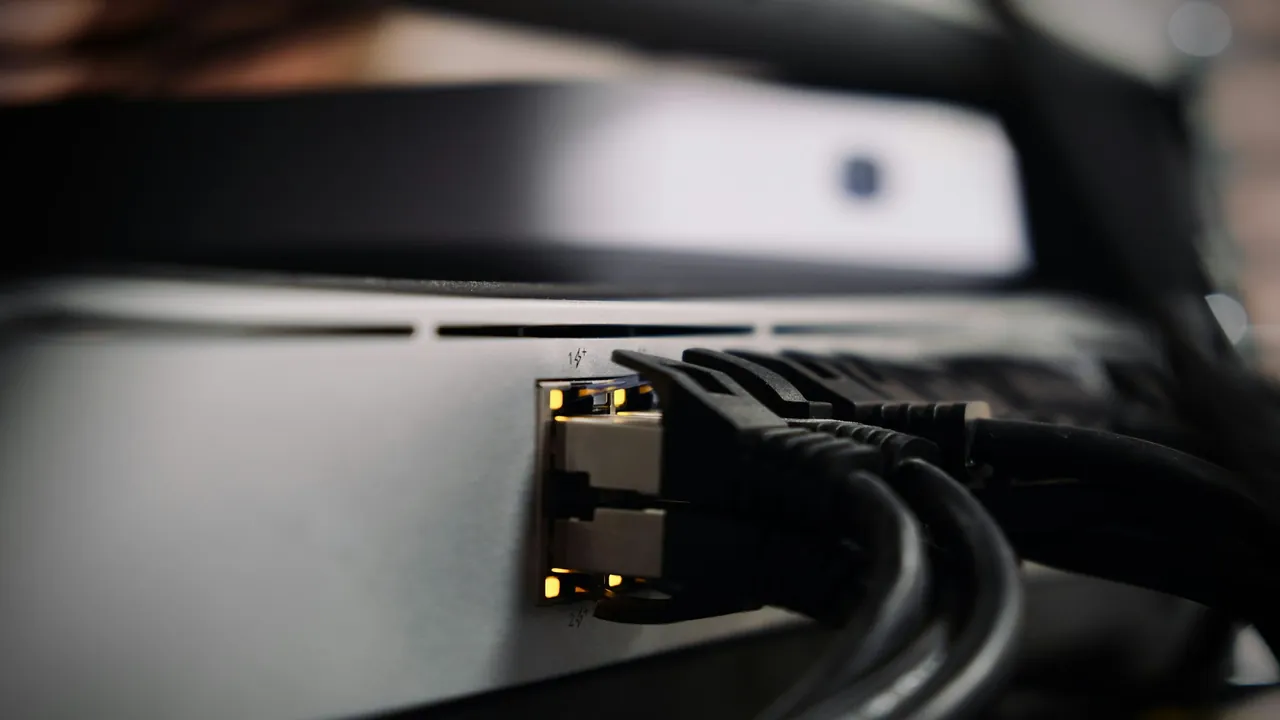
Ensure power, high-speed HDMI, and wired Ethernet cables are firmly seated for optimal transmission.
Step-by-Step Setup for Infomir MAG Boxes
Follow these steps to connect your MAG receiver to your Orvixa IPTV portal:
- Disconnect the Ethernet cable or power cable to access the Inner Portal (or reboot the device and hold the Setup / Menu button on your remote).
- Select Settings and navigate to System Settings.
- Click on Servers, then select Portals.
- Configure the portal fields:
- Portal 1 Name: Orvixa IPTV
- Portal 1 URL: Enter the exact portal URL provided during activation (e.g.,
http://mag.serverdomain.com/c/)
- Leave Portal 2 blank unless using a secondary backup service.
- Press the KB button on your remote to exit the virtual keyboard, then click OK to save.
- Return to System Settings and select Restart Portal (or reboot the box). Your MAG box will load the channel guide directly.
Step-by-Step Setup for Formuler MyTVOnline
Formuler’s MyTVOnline application offers one of the most responsive TV guides on the market:
- From the home screen, open MyTVOnline 2 or MyTVOnline 3.
- Select Add Portal or Add Connection.
- Choose your connection method:
- Portal (MAC ID): Provide your provider with the MAC address shown on your screen, then enter the Portal URL.
- Xtream Codes API: Enter your portal URL, username, and password. Learn how these compare in our breakdown of M3U vs Xtream Codes.
- Click Connect. The guide will download your channel groupings, EPG metadata, and VOD posters.
Optimal Cable & Network Configuration
Dedicated set-top boxes perform best when operating on clean network routing:
- Always Use Wired Ethernet: Avoid relying on USB Wi-Fi dongles for MAG boxes. Hardwiring your receiver ensures zero jitter during live 60fps sports events. See our comparison on Wi-Fi vs Ethernet for IPTV.
- Match Video Resolution: In your device settings, set video output to Auto or match your television’s native resolution (e.g., 2160p 60Hz or 1080p 60Hz) to allow the set-top box’s hardware upscaler to process frames cleanly.
Buffer Optimization & Portal Error Diagnostics
- Error: “Your STB Is Blocked”: This indicates that the MAC address registered on your provider’s server does not match the hardware MAC of your box. Double-check your MAC address digits.
- Error: “Page Loading Error”: Check your router’s internet connection. If other devices work, verify that your portal URL has no trailing space or spelling typo.
- Channel Stutters or Freezes: In MAG settings, navigate to Advanced Settings → Buffer Size and increase buffer time from 0 to 1,500 milliseconds (1.5 seconds). Learn additional fixes in our guide on how to reduce IPTV buffering.
Responsible Streaming Policy
Orvixa IPTV maintains high-capacity digital delivery infrastructure. End users are responsible for confirming that all multimedia content viewed through their hardware set-top boxes complies with regional copyright regulations and appropriate content licenses.
Frequently Asked Questions
Can I use a MAG box with an M3U link?
While newer MAG firmware includes an M3U playlist player in the home media section, MAG hardware is engineered primarily for Stalker/Ministra MAC portal authentication, which delivers the fastest EPG loading and channel zapping.
What makes Formuler different from generic Android boxes?
Formuler includes proprietary MyTVOnline software tightly coupled with hardware video pipelines, offering advanced features like picture-in-picture, multi-provider channel merging, and cloud PVR recording that standard Android TV boxes lack.
Experience Cable-Grade Zapping Speeds
Pair your MAG or Formuler set-top box with high-performance server clusters for seamless live sports and entertainment.
Test Orvixa IPTV With a Free 24-Hour Trial
Experience 28,000+ live US & international channels, 4K/Full HD sports, and VOD on your Smart TV, Firestick, or mobile device before you commit.