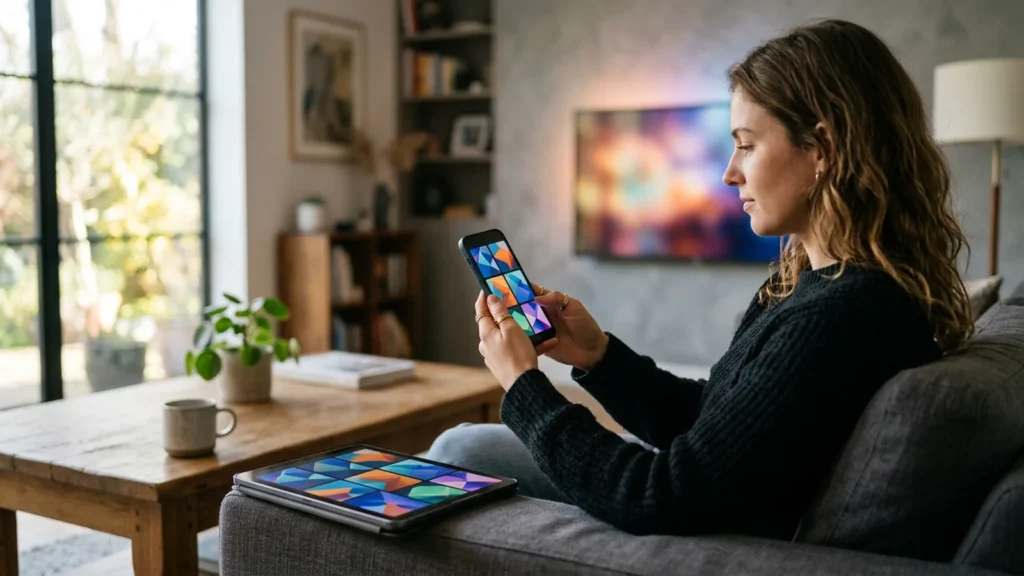
Quick Answer: To set up IPTV on iPhone or iPad, download a trusted player from the Apple App Store such as IPTV Smarters Pro, IPTVX, or GSE Smart IPTV. Launch the app, select Add User / Xtream Codes API, enter your server URL, username, and password, and click connect. iOS devices feature hardware H.265 decoding and full AirPlay support for effortless handheld and big-screen viewing.
Modern iOS and iPadOS devices boast sharp Liquid Retina displays, class-leading color calibration, and energy-efficient processors, making them exceptional portable viewing screens for live television, sports, and video on demand. Whether you are catching up on live news during your commute or casting a match to an AirPlay-compatible television, setting up IPTV on Apple mobile hardware is quick, secure, and requires no jailbreaking.
Table of Contents
- Supported iPhone & iPad Models
- Prerequisites & System Requirements
- Top Recommended IPTV Apps for iOS
- Step-by-Step Setup Using Xtream Codes API
- Using AirPlay 2 to Cast to Smart TVs
- Managing Cellular Data & Mobile Battery
- Troubleshooting Common iOS Streaming Issues
- Responsible Streaming Policy
- Frequently Asked Questions
Supported iPhone & iPad Models
Modern IPTV applications run seamlessly across the entire Apple mobile family on iOS 14.0 or later:
- iPhone: iPhone 11 through iPhone 16 series, including Pro, Plus, and Pro Max models with ProMotion 120Hz refresh rates.
- iPad: iPad Air, iPad Pro (M1, M2, M4), standard iPad (9th generation or newer), and iPad mini.
- iPod touch: 7th generation running iOS 15.
Prerequisites & System Requirements
- An Apple ID logged into the App Store.
- A high-speed Wi-Fi network (5 GHz band recommended) or a 4G/5G mobile data plan with sufficient data allocation. Read our analysis on how much data IPTV uses to avoid unexpected mobile carrier overages.
- An active Orvixa IPTV subscription with login credentials (server URL, username, password). You can select your plan via our IPTV subscription pricing.
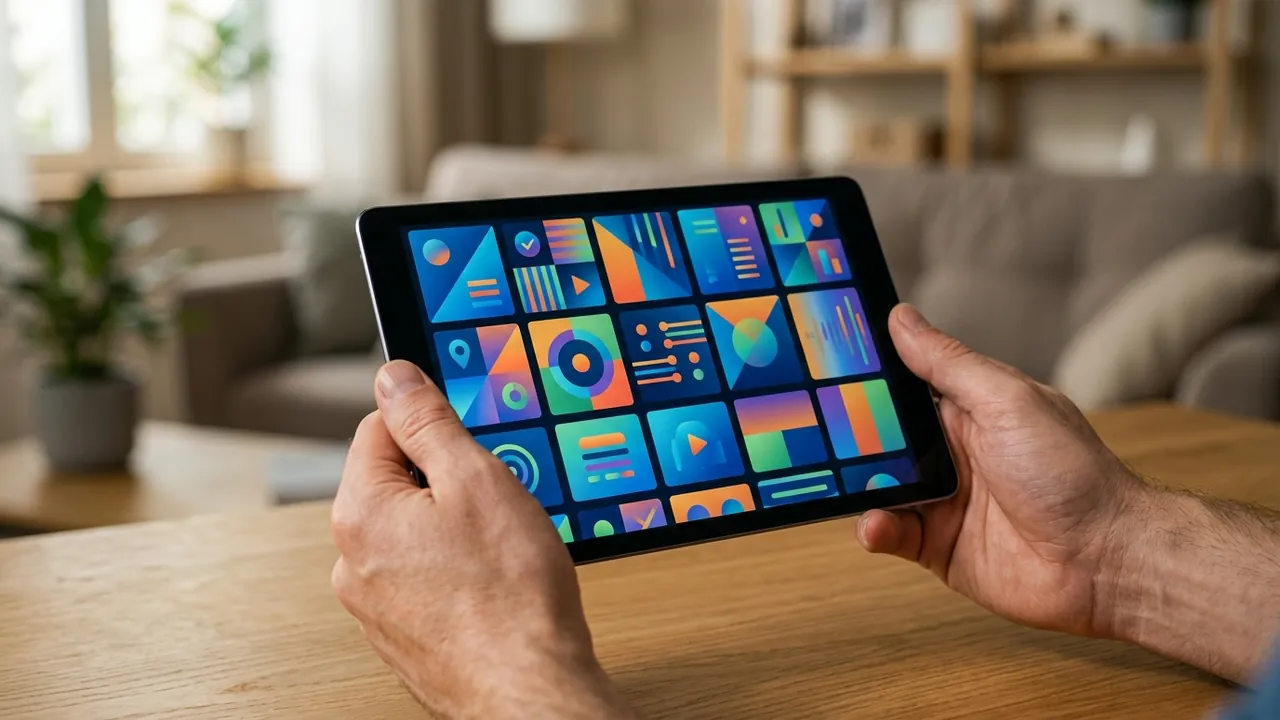
Intuitive touchscreen controls allow fast category navigation, favorite sorting, and instant search on iPad and iPhone.
Top Recommended IPTV Apps for iOS
Because Apple maintains rigorous app security standards, we recommend utilizing official App Store players:
- IPTV Smarters Pro: The most widely adopted cross-platform player, offering multi-screen viewing, parental controls, and automated EPG scheduling.
- IPTVX: A premier Apple-native player designed with Cupertino design guidelines, offering iCloud library synchronization between iPhone, iPad, and Apple TV.
- GSE Smart IPTV: A veteran player with extensive format decoding capabilities, advanced subtitle controls, and M3U/JSON playlist import options.
Step-by-Step Setup Using Xtream Codes API
The Xtream Codes API format ensures faster connection speeds, automated channel categorization, and real-time electronic program guide updates:
- Open the App Store on your iPhone or iPad.
- Search for IPTV Smarters Pro (or your preferred player) and tap Get.
- Launch the app and accept the terms of service.
- Tap Add User and select Login with Xtream Codes API.
- Fill in your subscription credentials:
- Any Name: Orvixa IPTV
- Username: Your account username
- Password: Your account password
- Server URL: The exact server host provided in your welcome email (e.g.,
http://portal.example:8080)
- Tap Add User. The app will fetch live channels, movies, series, and EPG schedules in seconds.
Using AirPlay 2 to Cast to Smart TVs
One of the biggest advantages of streaming on an iPhone or iPad is seamless AirPlay casting to compatible televisions and monitors:
- Swipe down from the top right corner of your iPhone screen to access Control Center.
- Tap the Screen Mirroring icon (or tap the AirPlay symbol directly within your video player).
- Select your AirPlay-compatible Samsung, LG, Sony, or Roku television.
- Enjoy high-bitrate live television on your main screen while controlling channels and volume directly from your handheld device. Check our guide on how many devices can use an IPTV subscription simultaneously to ensure your multi-room setup complies with your connection limit.
Managing Cellular Data & Mobile Battery
Streaming 1080p and 4K channels on mobile data consumes roughly 1.5 GB to 4 GB per hour. To conserve mobile data and battery life:
- Enable Hardware Decoding: In app settings, select Hardware Decoder (AVPlayer). This engages Apple’s dedicated Media Engine silicon, dramatically reducing battery draw compared to CPU software decoding.
- Adjust Resolution on Mobile: If streaming over limited 4G/5G data caps, choose standard definition (SD) or 720p HD channel streams when traveling.
- Low Data Mode: In iOS Settings → Cellular → Cellular Data Options, you can activate Low Data Mode to restrict background updates while streaming.
Troubleshooting Common iOS Streaming Issues
- Buffering on Public Wi-Fi: Hotels and public networks often throttle streaming media ports. Read our tested techniques on how to reduce IPTV buffering.
- Sound but No Video: Some audio formats require specific containers. Switch your player’s internal video playback engine from Native/AVPlayer to VLCKit.
- App Closes During Background Play: iOS aggressively suspends background tasks. Ensure Background App Refresh is enabled in iOS Settings for your IPTV app.
Responsible Streaming Policy
Orvixa IPTV supplies high-capacity routing and infrastructure for multimedia transmission. End users are responsible for verifying that their content access complies with local intellectual property regulations and valid media distribution licenses.
Frequently Asked Questions
Do I need to jailbreak my iPhone to install IPTV apps?
No. Reputable IPTV media players such as IPTV Smarters Pro, IPTVX, and GSE Smart IPTV are fully verified and available directly in the official Apple App Store.
Can I download broadcasts for offline viewing?
Live television streams require an active internet connection. However, select IPTV applications allow caching on-demand movies or series to internal iPad storage for offline playback while traveling.
Take Premium Television Everywhere You Go
Stream your favorite live sports, news, and entertainment on iPhone and iPad with lightning-fast servers.
Test Orvixa IPTV With a Free 24-Hour Trial
Experience 28,000+ live US & international channels, 4K/Full HD sports, and VOD on your Smart TV, Firestick, or mobile device before you commit.