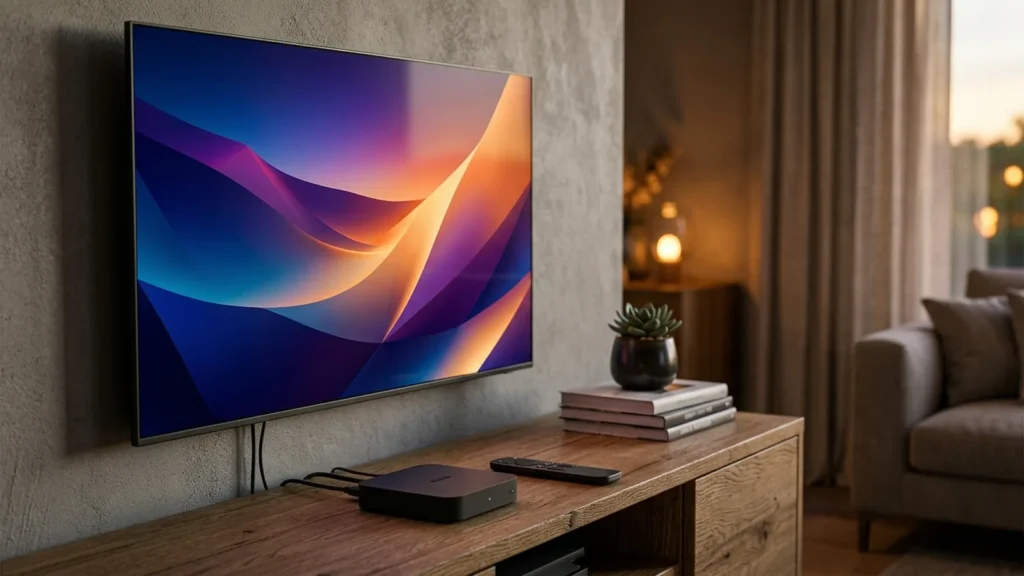
Quick Answer: To set up IPTV on Android TV or Google TV, open the Google Play Store, download a top-rated player such as TiviMate IPTV Player or IPTV Smarters Pro, launch the app, and enter your subscription login using Xtream Codes API (server address, username, and password). Android TV offers the most customizable streaming experience with full EPG support and recording capabilities.
Android TV and Google TV devices—including the Chromecast with Google TV, NVIDIA Shield TV, Xiaomi Mi Box, and integrated smart TVs from Sony, Hisense, and TCL—provide an exceptional platform for IPTV streaming. Powered by Google’s flexible ecosystem, Android TV supports advanced video decoders, external storage for DVR recordings, and dedicated IPTV players designed specifically for TV remotes.
Table of Contents
- Supported Android TV & Google TV Hardware
- Prerequisites
- Step 1: Installing a Player via Google Play Store
- Step 2: Adding Your IPTV Playlist & Credentials
- Optimizing TiviMate for the Best TV Guide Experience
- Hardware & Buffer Optimization
- Troubleshooting Common Android TV Errors
- Responsible Streaming Policy
- Frequently Asked Questions
Supported Android TV & Google TV Hardware
Android TV covers a wide array of devices running Android 9.0 through Android 14. Highly recommended hardware includes:
- NVIDIA Shield TV / Shield Pro: The benchmark for IPTV power users, featuring AI upscaling, gigabit Ethernet, and dual USB 3.0 ports.
- Chromecast with Google TV (4K & HD): Affordable and compact with responsive voice remote integration.
- Onn. Google TV 4K Pro / Streaming Box: Popular high-value Google TV streaming boxes with robust Wi-Fi 6 connectivity.
- Integrated Smart TVs: Sony Bravia, TCL, and Hisense models running official Google TV interfaces.
Prerequisites
- An active Google Account logged in on your Android TV device.
- A reliable internet connection: 25 Mbps for standard 1080p channels or 50+ Mbps for 4K. Read our guide on recommended internet speeds for IPTV for comprehensive testing advice.
- Your Orvixa IPTV subscription credentials (Xtream Codes API or M3U link). Need an account? Explore our IPTV subscription plans.
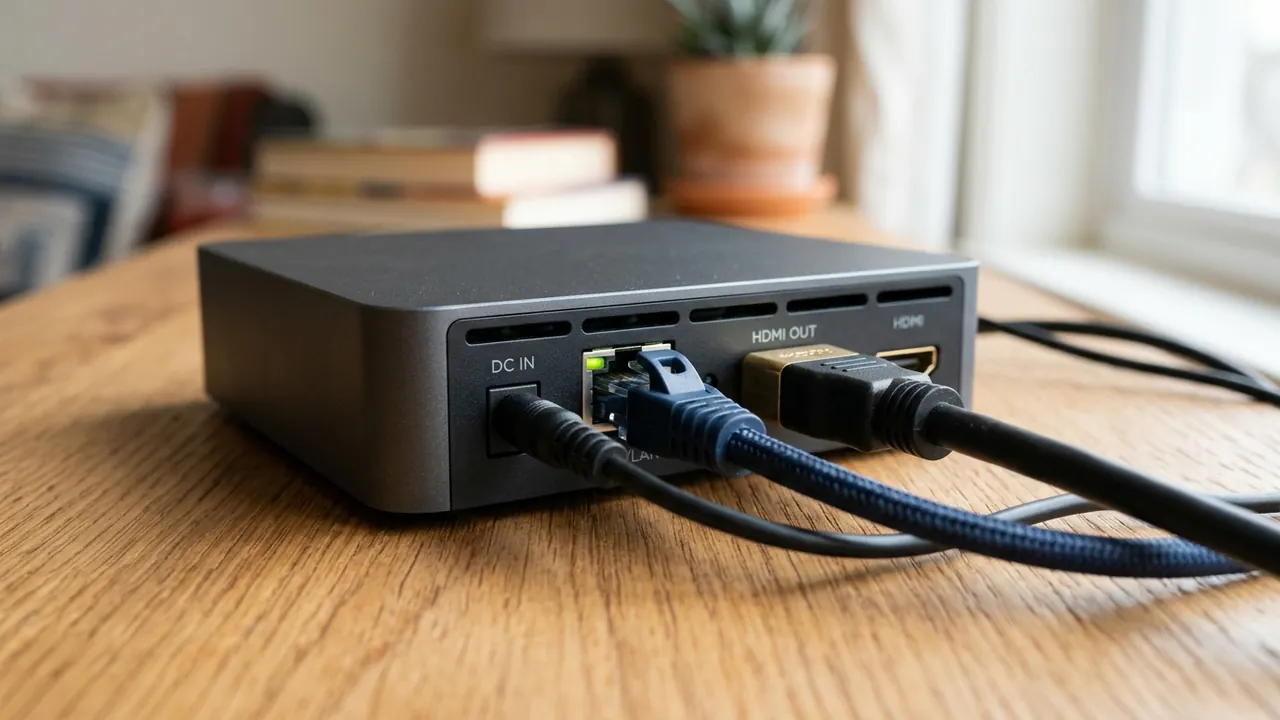
Connecting via wired Ethernet ensures consistent streaming throughput and zero Wi-Fi signal dropouts.
Step 1: Installing a Player via Google Play Store
Android TV grants direct access to the Google Play Store, eliminating the need to sideload third-party APK files:
- From the Android TV home screen, open the Google Play Store.
- Select the search bar and type TiviMate IPTV Player or IPTV Smarters Pro.
- Click Install to download the application.
- Open the application once installation is complete.
Step 2: Adding Your IPTV Playlist & Credentials
For the cleanest channel organization and automated EPG loading, configure your account via Xtream Codes API:
Xtream Codes Login Steps:
- Click Add Playlist and select Xtream Codes login.
- Enter the Server Address provided in your activation details (e.g.,
http://server.domain:port). - Enter your Username and Password.
- Ensure Include VOD and Auto-update EPG are checked.
- Click Done or Submit. Your channels and categories will populate within seconds.
Optimizing TiviMate for the Best TV Guide Experience
TiviMate is widely considered the premier IPTV player on Android TV due to its authentic cable-box guide layout. To get the most out of it:
- Group Management: Hide foreign language categories or channel groups you do not watch by pressing and holding the remote center button over any category and selecting Manage Groups.
- Buffer Size: Navigate to Settings → Playback → Buffer Size. Set buffer size to Medium (3-5 seconds). This buffers enough video to absorb momentary network micro-bursts without causing noticeable channel-switching delay.
- Audio Passthrough: In Settings → Playback → Audio, enable Audio Passthrough if your Android box is connected to an AV receiver or soundbar for multi-channel Dolby audio.
Hardware & Buffer Optimization
To ensure flawless 4K sports streaming on Android TV hardware:
- Prefer Ethernet Over Wi-Fi: If your streaming box has an Ethernet jack (or if you use an external USB-to-Ethernet adapter), use a wired CAT6 cable. Review our breakdown of Wi-Fi vs Ethernet for IPTV for technical metrics.
- Select Hardware Decoder: Ensure your player uses hardware video decoding (MediaCodec / ExoPlayer) so the GPU handles 60fps deinterlacing rather than overworking the CPU.
Troubleshooting Common Android TV Errors
- Audio Plays but Screen Is Black: This occurs when an older codec is selected. Go to your player’s playback settings and change Video Output from OpenGL to Hardware Accelerated.
- Channels Freezing at Peak Hours: If freezing only happens during live evening games, your ISP may be throttling streaming traffic. Consult our guide on why IPTV channels freeze at certain times and learn how to configure alternative DNS servers.
- TV Guide Missing Information: Follow our diagnostic steps to fix an IPTV EPG that is not updating.
Responsible Streaming Policy
Orvixa IPTV provides high-performance infrastructure for multimedia streaming. Users are responsible for ensuring that all content accessed complies with local copyright laws and service licensing agreements.
Frequently Asked Questions
Is TiviMate free on Android TV?
TiviMate offers a free tier that allows single playlist playback. The optional Premium upgrade unlocks multi-playlist support, channel recording, scheduled backups, and customized favorites.
Can I record live broadcasts to a USB drive?
Yes. If your Android TV box has a USB port (like the NVIDIA Shield or Onn. 4K Pro), you can attach a formatted USB flash drive and configure local recording directly inside TiviMate.
Unleash the Full Potential of Android TV
Stream thousands of HD and 4K sports channels with lightning-fast zapping speeds on your Android TV device.
Test Orvixa IPTV With a Free 24-Hour Trial
Experience 28,000+ live US & international channels, 4K/Full HD sports, and VOD on your Smart TV, Firestick, or mobile device before you commit.